
ClipPastry
See your clipboard. Choose what to paste. ClipPastry remembers everything you copy. When you press ⌘V, it asks "What should I paste?" and shows your recent copies in a 3×3 grid.

How ClipPastry works
The Mac clipboard holds one thing at a time, and you can't see it. ClipPastry keeps everything you copy and shows it to you right when you're about to paste.
Features
⌘V asks what to paste
- Your last 99 copies, 9 at a time in a 3×3 grid. Scroll for older ones.
- Opens in the bottom right corner. Drag its top bar to move it, or its edges to resize it. Click the moon/sun for a light or dark background.
- Click a tile to paste it. ⌘V twice pastes your latest copy, as usual.
- Each tile shows a preview, the app it came from, and the date and time you copied it.
Search: just type
The search bar is always at the top. Filter your whole history by text, app or date (try "today").

Send clips to your iPhone
Need a boarding pass, an address, a link or a screenshot on your phone? Click ☁︎ on any clip, or press ⌘S, and ClipPastry saves it to iCloud Drive › ClipPastry. A moment later it's on your iPhone, iPad and your other Macs. To send several, ⌘-click them and click iCloud. A small ☁︎ on a tile means it's already saved.
Only the clips you pick are uploaded, to your own iCloud account. Text is saved as a text file, pictures at full size, and files as copies.
Open them on your iPhone. They're files in iCloud Drive, not in the iPhone keyboard.
- Open the Files app on your iPhone.
- Tap Browse at the bottom, then iCloud Drive, then the ClipPastry folder.
- Tap a file to open it, then touch and hold the text → Select All → Copy, and paste wherever you like. For a picture, tap the share button → Copy, or Save Image to put it in Photos.
Tip: touch and hold the ClipPastry folder → Favorite to reach it in one tap. If the folder isn't there yet, pull down to refresh, and check that iCloud Drive is on: Settings → your name → iCloud → iCloud Drive.

Pin your favorites
Press ⌘P to keep things you paste often, like your email or address. Pinned clips sit first, never age out, and can't be deleted until you unpin them.

Paste or delete several at once
⌘-click several tiles (or ⌘A for all). Press Return or click Paste and they're pasted one after another in the order you picked them, pictures too. ⇧Return or Together joins the text into one paste, each clip on its own line. Or press Delete: ClipPastry always asks first.

Screenshots go straight in
Take a screenshot (⌘⇧4) and it's copied right away, so ⌘V ⌘V pastes it. The file is still saved as usual.

A popup for every copy
A quiet popup shows what you just copied and where it came from. You can turn it off or move it.

Paste as plain text
Hold ⌥ Option while choosing to paste without fonts, colors or links. That's handy when copying from a web page into an email.
Works with your other apps
Dictation apps like Wispr Flow, text expanders and password managers paste normally. It lives in the menu bar, starts at login, and updates itself.
Keyboard shortcuts
| In the grid | What it does |
|---|---|
| ⌘V again, or Return | Paste the highlighted tile (your latest copy by default) |
| ⌘1 … ⌘9 | Paste tile 1 to 9 |
| ⌥ + any of the above | Paste as plain text |
| Type anything | Search (numbers too) |
| ⌘P | Pin / unpin |
| ⌘S | Save to iCloud Drive (the highlighted clip, or all selected) |
| ⌘-click, Shift-click, ⌘A | Select several |
| Return / ⇧Return with several selected | Paste them one after another / together |
| Delete | Remove (asks first) |
| Esc | Clear the search, clear the selection, or close |
| ⌃⌘V (anywhere) | Open the grid any time |
Install in two minutes
- Click Download for Mac. ClipPastry.dmg downloads to your Downloads folder.
- Open the downloaded file and drag ClipPastry into Applications. If you already have it, click Replace.
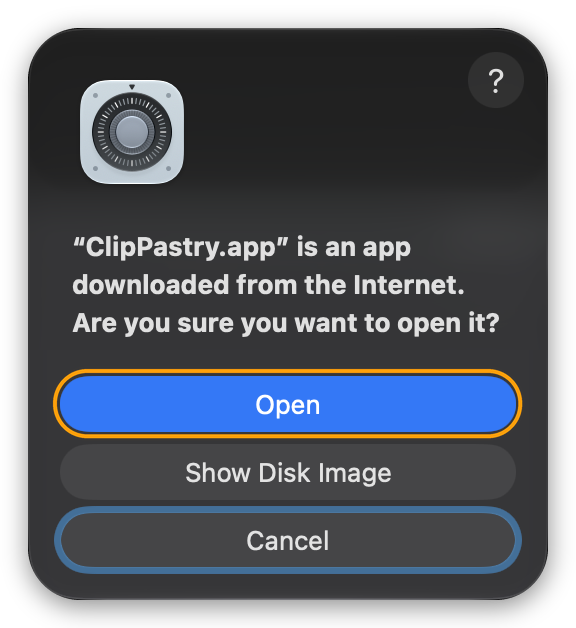
- Open ClipPastry. When macOS asks if you're sure you want to open an app from the internet, click Open.
- Switch ClipPastry on. This step is required. ClipPastry's welcome guide opens with a button that takes you straight there (or, when macOS asks, click Open System Settings). Turn on the switch next to ClipPastry under Privacy & Security → Accessibility (on the newest macOS it's called Device Control and Data Access). Without it, ⌘V pastes as usual and the grid never opens. When it's on, ClipPastry shows “Paste picker is on.”
 If it already looks on but ⌘V doesn't show the grid, select ClipPastry in that list, click −, then click the ClipPastry menu bar icon → Needs Accessibility access… and switch it on again.
- If macOS asks about your Desktop or Downloads folder, allow it so screenshots appear in ClipPastry.
ClipPastry is signed and notarized by Apple, so it opens without an "unidentified developer" warning.
Privacy
- Everything stays on your Mac, except clips you choose to send to iCloud Drive. Your history is saved in a private folder only your account can read, and it's left out of Time Machine backups.
- iCloud only when you ask. Clips you save with ☁︎ go to your own iCloud Drive and nowhere else.
- Passwords stay out of your history. Copies that password managers mark as secret are never saved in ClipPastry's history. You can still send one to iCloud yourself with ☁︎ while it's on your clipboard.
- No accounts, no tracking, no analytics. The only time ClipPastry itself goes online is the daily check for updates.
Free for everyone
Free for personal and commercial use, at home or at a business, school or other organization. No license request needed. Questions or feedback: aroramanish70@gmail.com.
Full terms: LICENSE.md. ClipPastry includes Sparkle (sparkle-project.org) under the MIT License.